 English
 العربية

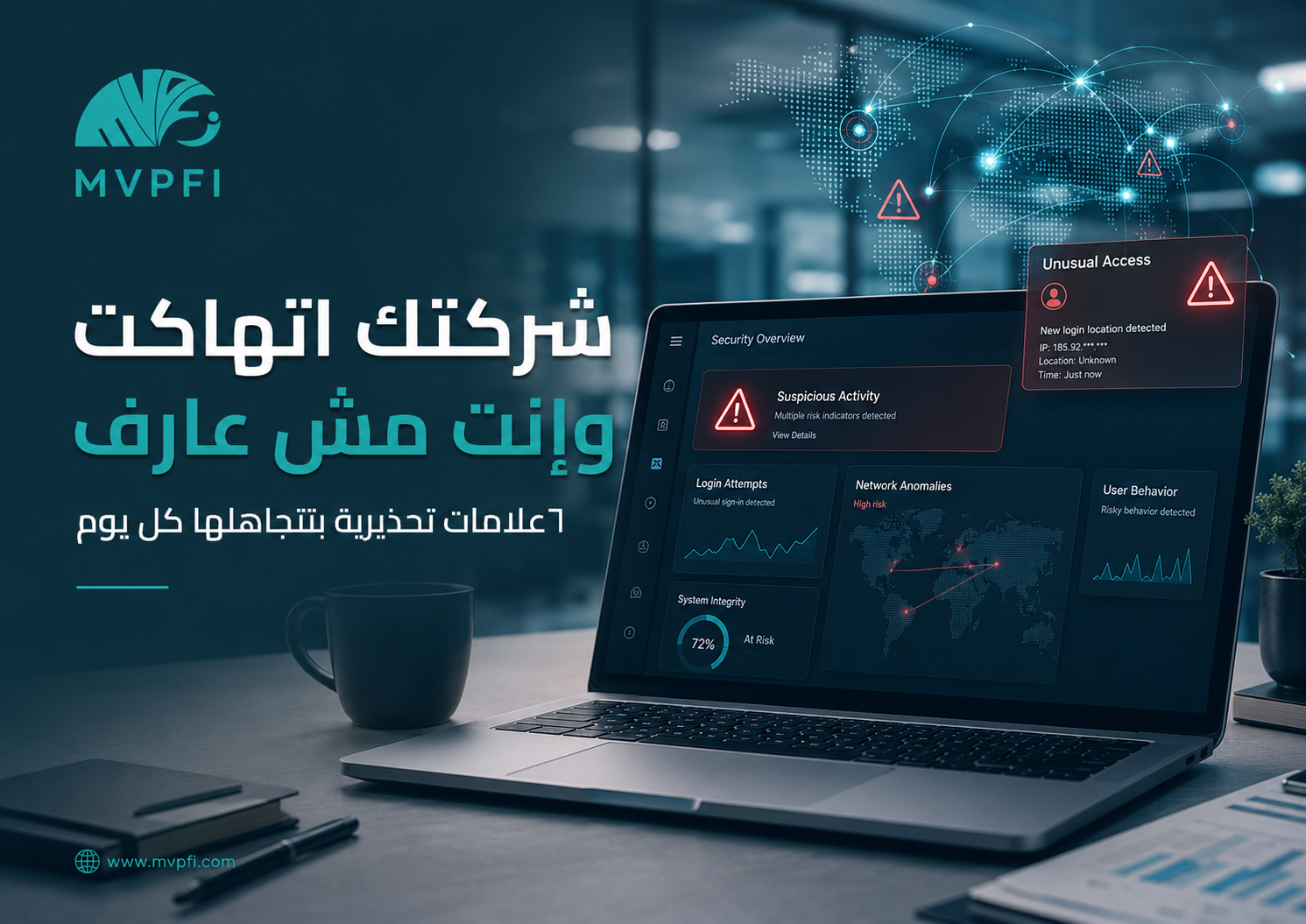
Cybersecurity & Breach Detection
Your Company May Be Hacked Without You Knowing — 6 Warning Signs You Ignore Every Day
A cyberattack does not always appear as a black screen, a ransom message, or a dramatic system shutdown. Sometimes it starts quietly: an unusual login, a slow device, an email account sending messages by itself, files changing without explanation, or a small security alert that gets ignored because it “probably means nothing.”
Many small and medium-sized businesses discover a breach too late: after devices stop working, files disappear, customers complain about strange emails, unexplained transactions appear, or company email is used to send malicious links.
The problem is that warning signs often appear early, but they are treated as normal technical issues, network pressure, or employee mistakes. That is why it is important to recognize these signs and respond quickly before they turn into a bigger crisis.
First: One Sign Does Not Always Mean a Confirmed Breach
Before panicking, it is important to understand that one warning sign does not always mean your company has been hacked. A slow device may be caused by updates, a strange email may be a normal mistake, and a security alert may be a failed attempt that did not succeed.
The real danger appears when signs repeat, when multiple signs appear together, or when they involve important accounts such as business email, admin dashboards, financial systems, CRM, ERP, social media accounts, or advertising platforms.
A successful breach does not always announce itself. Sometimes it leaves very small signals — and smart businesses notice them early.
A Quick Look at the 6 Warning Signs
Warning Sign 1: Logins From Unusual Locations or Devices
One of the clearest early signs is a login from an unusual country, a new device, an unfamiliar browser, or an illogical time. These signs may appear in email accounts, Google or Microsoft accounts, management systems, admin dashboards, or social media platforms.
Do not ignore messages such as: “New device signed in,” “Suspicious login attempt,” or “Your password was changed.” These alerts may be failed attempts, but they may also indicate the beginning of unauthorized access.
Review Login History
Check recent devices and locations for important accounts, especially email, admin panels, financial systems, and hosting accounts.
Enable MFA Immediately
Multi-factor authentication reduces risk even if a password is leaked, stolen, or guessed.
Change Important Passwords
Use strong, unique passwords and avoid reusing the same password across multiple accounts.
Close Active Sessions
Sign out from unknown devices and review connected applications, API keys, and third-party access.
If an unusual login appears on a manager’s email, financial account, hosting panel, or advertising account, treat it as a high-priority issue.
Warning Sign 2: Devices Are Slow or Behaving Abnormally
A slow device does not always mean a breach, but it should not be ignored if it comes with strange behavior: windows opening by themselves, pages the user did not visit, unknown programs, sudden high CPU usage, high internet usage, or repeated freezing without a clear reason.
In some cases, the device may be infected with malware, involved in unauthorized activity, or sending data outside the company without the user’s knowledge.
Watch the Behavior
Is the slowness constant? Does it happen only when online? Are there new programs, strange popups, or unusual activity?
Temporarily Isolate the Device
If the behavior is highly suspicious, disconnect the device from the network until it is checked.
Scan and Update
Scan the device using trusted security tools, then update the operating system, browser, and critical applications.
Warning Sign 3: Email Sends Strange Messages or Unknown Forwarding Rules Appear
Business email compromise is one of the most dangerous scenarios for companies because email is often connected to invoices, clients, contracts, passwords, support requests, and internal files. A strong warning sign is when a client says they received a strange message from your company, or when sent messages appear that no one on your team recognizes.
Another serious sign is the existence of unknown forwarding rules or filters inside the mailbox. Sometimes attackers create a hidden rule that forwards sensitive emails to an external address without anyone noticing.
Review the Sent Folder
Check whether there are messages the employee did not send, strange replies, or unusual links.
Review Forwarding Rules
Make sure there are no unknown forwarding rules or filters sending emails to external addresses.
Warn Customers When Needed
If malicious messages were sent, publish or send an official warning to help customers avoid harmful links.
Review Connected Apps
Remove suspicious or unknown third-party apps connected to the email account.
A compromised email account does not only steal messages. It can steal customer trust.
Warning Sign 4: Files Change, Disappear, or Get Strange Extensions
If files disappear, names change, documents no longer open, or strange file extensions appear, this deserves quick attention. It may be a human mistake, but it may also indicate malicious activity, especially if it happens across multiple devices or shared folders.
In more serious cases, this may be the beginning of file encryption or data sabotage. Do not treat it as “just a missing file.” Review activity logs, access permissions, and backups immediately.
| Sign | What It May Mean | First Action |
|---|---|---|
| Files suddenly disappeared | Accidental deletion or unauthorized account use | Review activity logs and permissions |
| Files no longer open | File corruption or possible encryption | Disconnect the device and check backups |
| Strange file extensions | Abnormal file modification | Stop sharing and inspect affected devices |
| Changes in a shared folder | Too many permissions or compromised account | Check who changed what, when, and from which device |
Warning Sign 5: Unknown Devices or Unexplained Internet Usage on the Network
If the network suddenly becomes slow, internet usage increases without explanation, or unknown devices appear on the router, this is an important signal. It may be only a guest device, but it may also be an unauthorized device or an infected device sending data outside the company.
Companies that use one shared network for employees, guests, printers, cameras, and internal systems usually find it harder to identify unknown devices because everything lives in the same environment.
Review Connected Devices
Check your router or network management system and identify known and unknown devices.
Separate Guest Wi-Fi
Guests should have internet access only, not access to internal company devices.
Change Wi-Fi Passwords
Especially if the password is known by visitors, former employees, vendors, or contractors.
Monitor External Connections
Strange or repeated connections to unknown destinations should be reviewed by a technical team.
Warning Sign 6: Security Alerts Are Ignored Every Day
Many companies already receive security alerts but do not act on them: alerts from Google or Microsoft, hosting warnings, antivirus notifications, firewall alerts, or monitoring reports. The problem is not always the absence of alerts — it is ignoring them.
A security alert does not always mean a disaster, but it does mean something needs attention. Ignoring repeated alerts causes the business to lose the chance for early detection.
Receive the Alert
Define a clear email or communication channel for security alerts instead of letting them disappear in daily messages.
Review and Evaluate
Classify the alert: failed login attempt, new device, password change, suspicious activity, or unusual access.
Take Action
Change passwords, isolate a device, review permissions, enable MFA, or escalate to a technical team.
If You Notice One or More Signs, What Should You Do Immediately?
Fast action matters, but random action can make things worse. Do not delete everything immediately, and do not shut down all devices without understanding the situation. Start with organized steps that reduce damage, preserve evidence, and help you understand what happened.
| Action | Why It Matters |
|---|---|
| Disconnect the suspicious device from the network | To reduce spread or stop suspicious external communication |
| Change passwords for critical accounts | Especially email, hosting, financial systems, and admin dashboards |
| Enable MFA | To prevent access even if the password is known |
| Review login and activity logs | To understand who accessed what, when, and from which device or location |
| Check backups | To make sure you have a safe copy before cleanup or recovery |
| Call a specialized team | If signs are repeated or involve customer data, finance, or critical systems |
How to Reduce the Chance of a Breach From the Start
Detection is important, but prevention is better. Companies that apply cybersecurity basics reduce the chance of a breach and discover problems faster if they happen.
Enable MFA for Important Accounts
Start with email, hosting, financial systems, social media, advertising accounts, and admin panels.
Use Unique Passwords
Do not reuse passwords between accounts, and use a password manager when needed.
Organize Permissions
Each employee should access only what they need, and access should be removed immediately when someone leaves.
Prepare Recoverable Backups
Backups should be regular, secure, and tested for recovery.
Update Devices and Systems
Updates close many known vulnerabilities. Delaying them keeps the door open to avoidable risks.
Monitor Alerts and Logs
Do not wait for customers to complain. Watch unusual behavior early.
Conclusion
Your company may be compromised or under attack without obvious signs. The signals may be small: unusual logins, slow devices, strange email behavior, changing files, unknown network devices, or ignored security alerts.
The smart approach is not to panic over every sign, but to respond with awareness: monitor, verify, isolate when needed, change passwords, enable MFA, check backups, and involve a specialized team if signs are serious or repeated.
Cybersecurity does not start after the breach. It starts with your ability to notice small signals before they become a crisis.
Start With a Security Review Before Small Signs Become a Big Loss
MVPFI helps you review accounts, networks, devices, alerts, permissions, and backups, analyze indicators of compromise, and build a protection plan that fits your business size and risk level.
Frequently Asked Questions
Does a slow device mean the company has been hacked?
Not always. A slow device may be caused by normal updates or technical issues, but it becomes concerning when combined with strange behavior such as unknown programs, unusual popups, high internet usage, or repeated freezing.
What is the clearest sign of a compromised business account?
Logins from unknown devices or locations, password changes, messages sent without your knowledge, or unknown email forwarding rules are strong warning signs that require immediate review.
Can business email be compromised without anyone noticing?
Yes. Sometimes attackers quietly use email accounts to send messages, monitor conversations, or forward sensitive emails through hidden rules.
What is the first action when I suspect a device is compromised?
Temporarily disconnect the device from the network, avoid deleting evidence randomly, review related accounts, and scan it using trusted tools or a specialized technical team.
Does MFA reduce breach risk?
Yes. Multi-factor authentication adds an important layer of protection because the password alone is not enough to access the account.
Why are backups important during a breach?
Backups help recover data if files are deleted, encrypted, or corrupted, but they must be regular, secure, and tested for recovery.
Should customers be informed if company email is compromised?
If malicious messages or fraudulent links were sent from company email, it is better to warn customers quickly and officially to reduce harm and protect trust.
How can MVPFI help detect breaches?
MVPFI helps review accounts, networks, devices, alerts, permissions, and backups, analyze signs of compromise, and provide a remediation and protection plan for the business.
Add New Comment